Quick Start: Preserving Existing Trees
Mature trees provide valuable habitats and are often difficult to replace. Continuous sensor monitoring allows for the early detection of pathological changes—before they become visible—and enables timely implementation of targeted maintenance measures.
The TreeSense Pulse measures the moisture index directly within the tree canopy. Since the canopy of mature trees is more heterogeneous than that of young trees, it may be advisable to install multiple Pulse sensors on a single tree to cover different areas of the canopy.
Quick Start in 5 Steps
Step 1 – Create a tree and assign a location
Add a new tree: Go to Tree Registry, Tree Inventory, or Map View and click “Add Tree.” Place the tree on the map and confirm its location. Select the project and location, enter the basic information (tree species, year planted, location), and save. Alternatively, you can create a new project or area directly at this point.
→ Video tutorial: Adding a tree to the tree registry
Step 2 – Assign sensor
In the tree view, use the pencil icon to assign the installed sensor. Enter the installation date, mounting height, and sensor type.
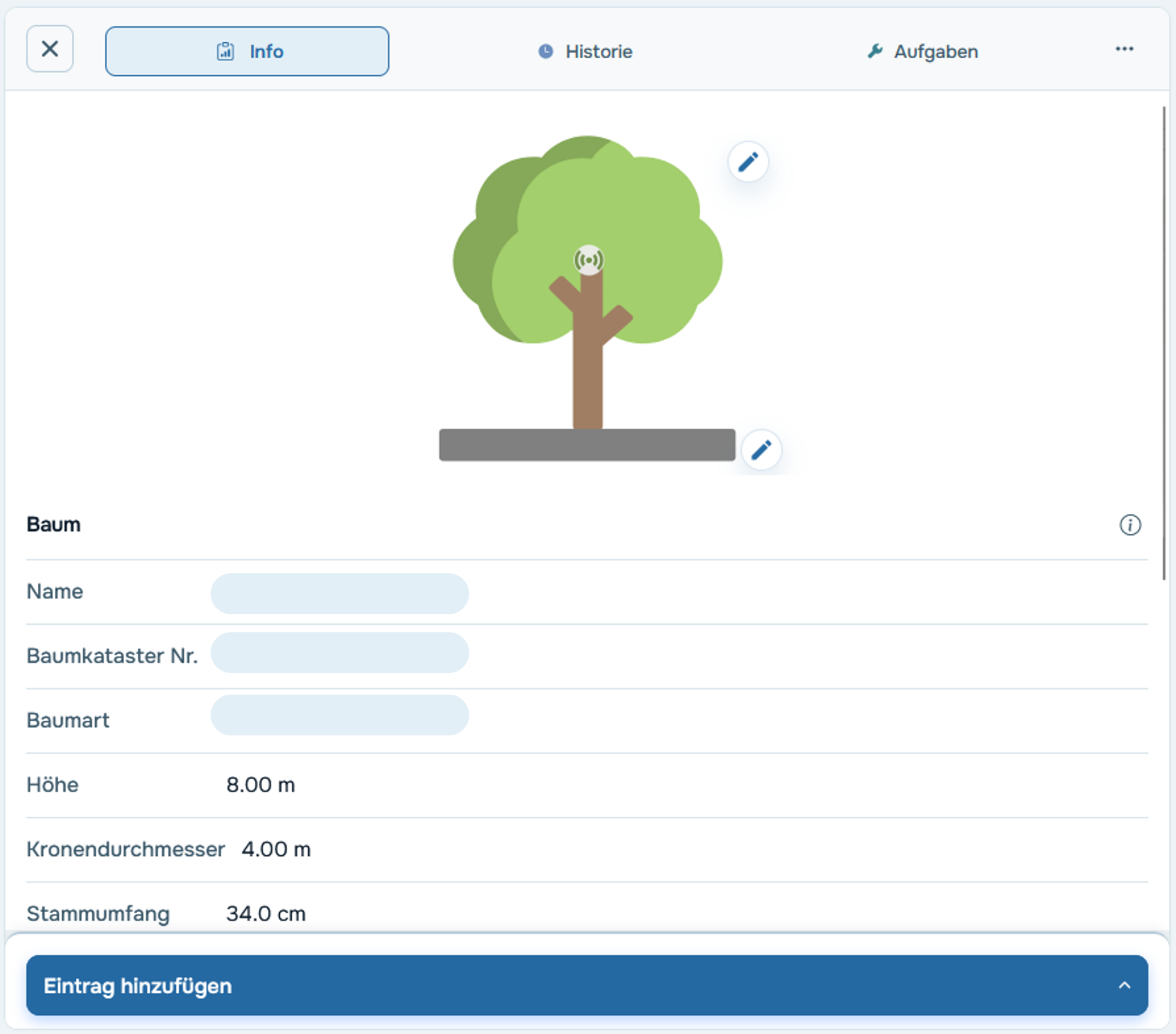
Step 3 – Check the thresholds
The default thresholds are empirical guidelines—however, depending on the tree species and location, it may be advisable to adjust them. You can do this in the tree profile by clicking the pencil icon under the "Thresholds" tab.
→ More info: Manually adjust your trees' limits
Step 4 – Set up notifications
In the Settings under Notifications, you can choose whether and when you want to be notified—for example, as soon as a tree turns yellow or red.
Step 5 – Create tasks
As soon as a tree needs to be watered, create a task in the tree’s profile by clicking “Add entry” or in the Tasks section by clicking “New task.” Tasks help you plan watering schedules, assign them to the team, and document their completion.
→ Video tutorial: Create a task manually
Keeping Track of Changes – Data Analysis
The traffic light indicates a tree's current condition. To detect long-term changes early on—such as a gradual decline in vitality over weeks or months—use the data analysis section of the cloud. There, you can select individual sensors and interpret trends over time.

